
Ledger Chat
How Ledger Chat works
A plain guide to everything you can do in Ledger Chat: messages, voice notes, calls, scheduled calls and messages, payments, communities and settings.
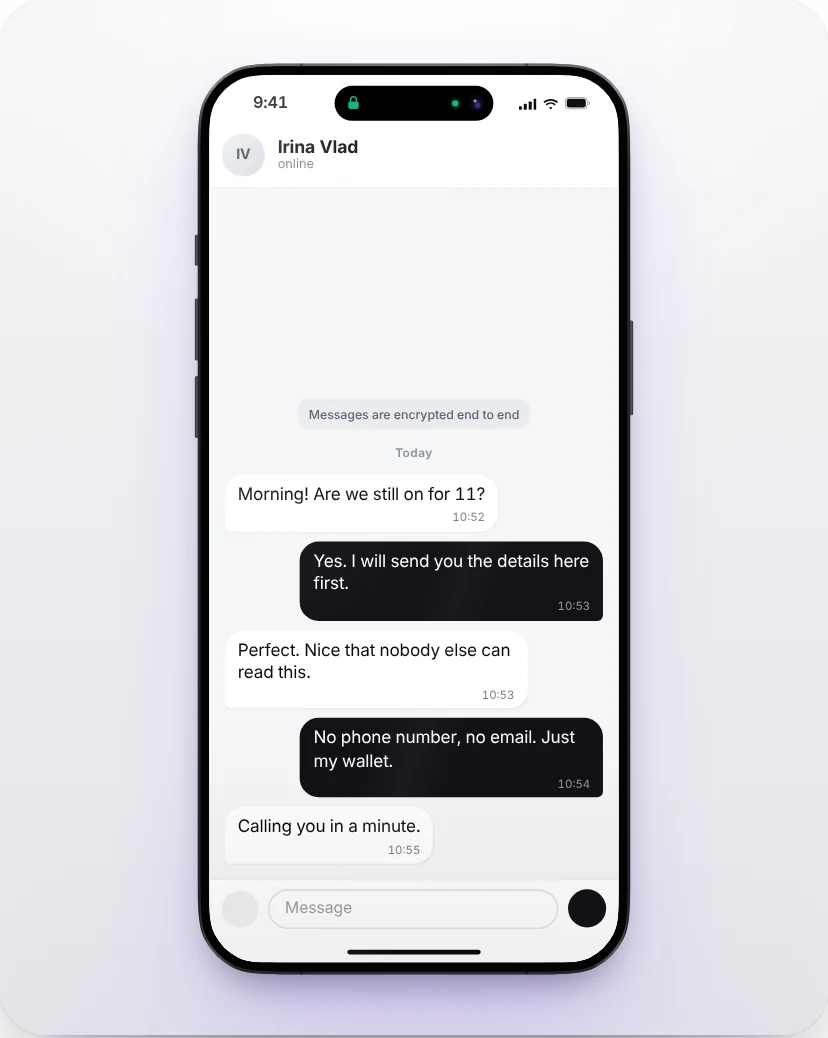
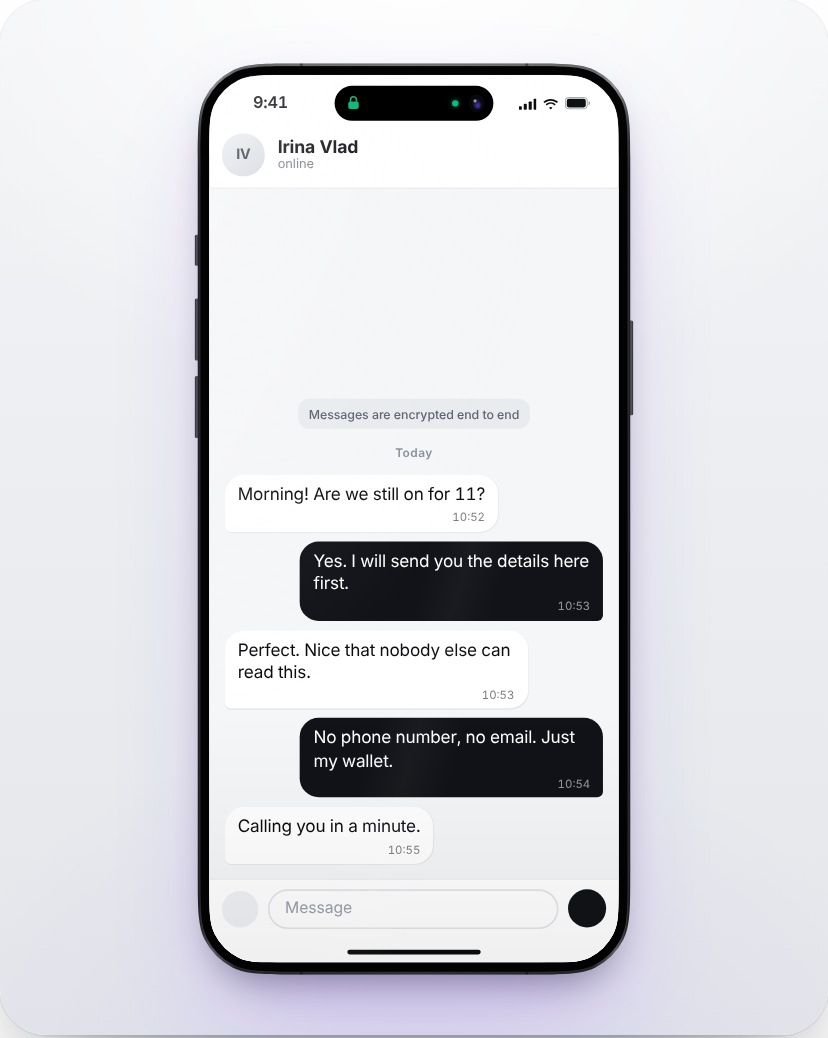
Ledger Chat is a messenger where your wallet is your account. There is no phone number, no email and no password. Messages, calls and payments happen in the same conversation, and what you write is encrypted on your device before it leaves.
Getting started
Open Ledger Chat
Go to ledgerchat.org/chat in Safari, Chrome, Edge or Firefox, on your phone or your computer. There is nothing to install.
Connect a wallet
Choose the wallet you already use. Ledger Chat asks it to sign a short message to prove the address is yours. Signing is free and is not a transaction.
Allow secure messaging
The first time, your browser creates the encryption keys for your messages. They stay on this device.
Choose a name
Pick the name people will see. You can add a photo and a short bio later in Settings.
On a computer you can link Ledger Chat to your phone instead of connecting a wallet there: open Scan a code on your phone and point it at the code on the computer. See Devices.
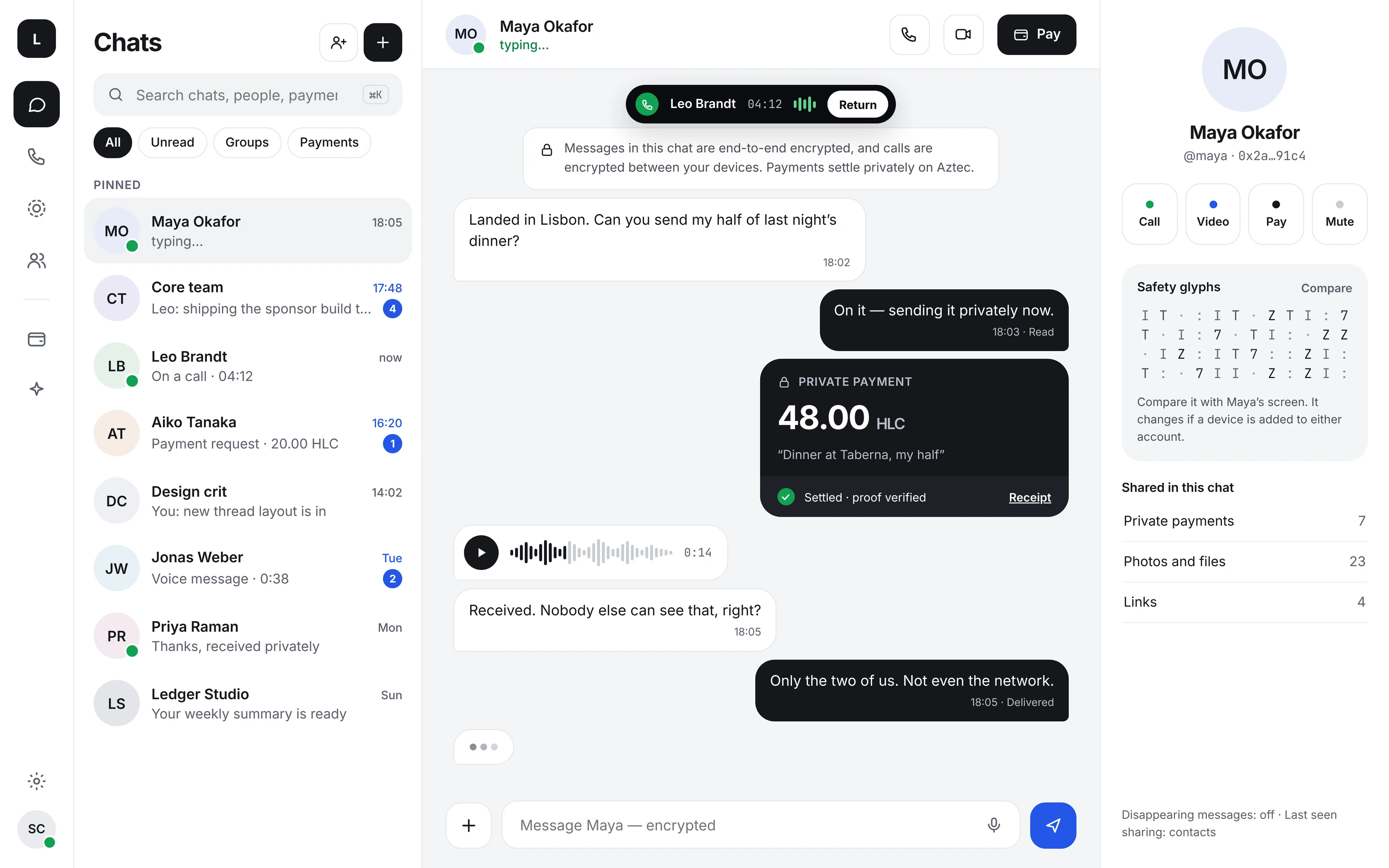
Chats and messages
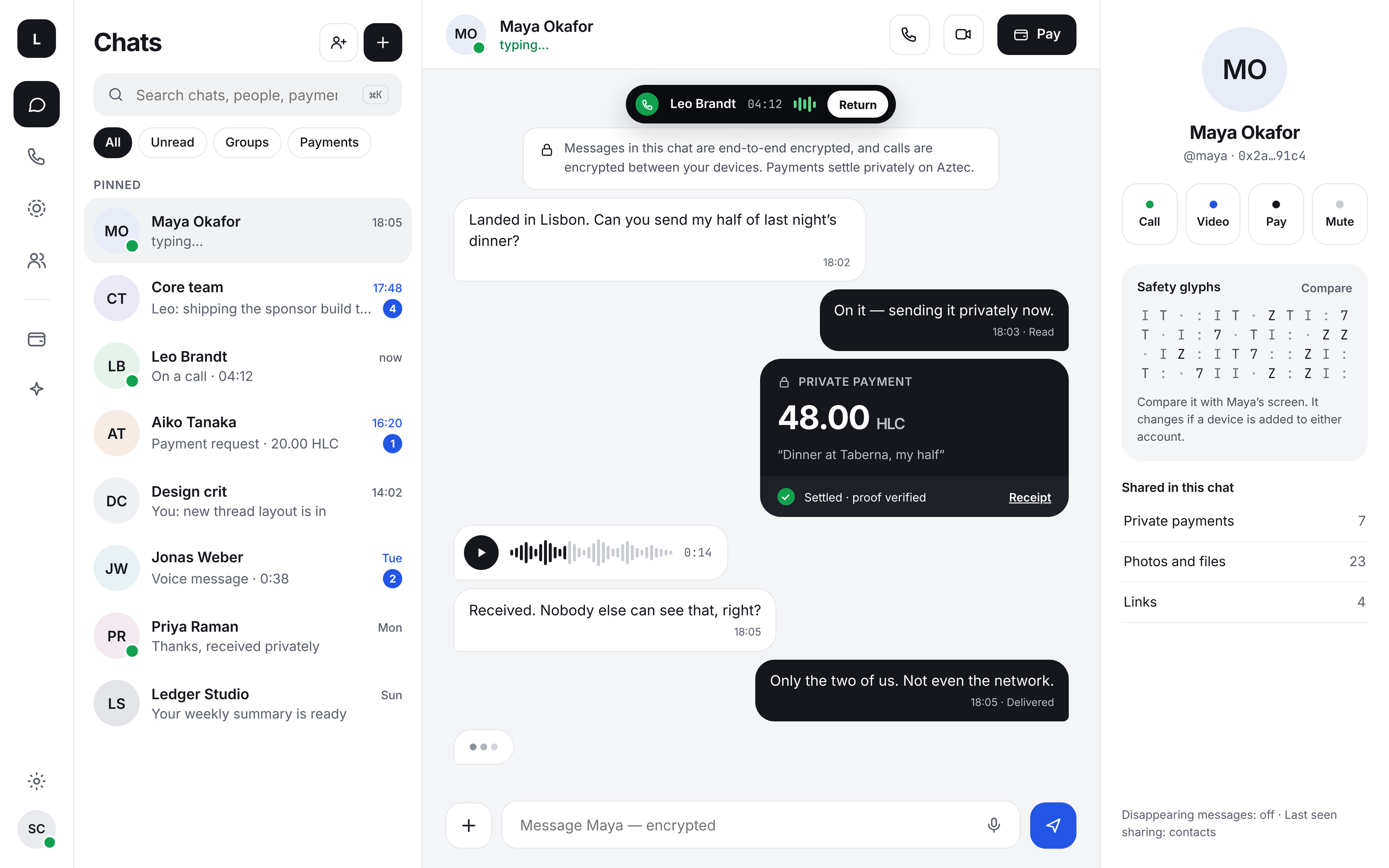
- Start a chat with New chat: type a name, an @username or a wallet address. You can also scan someone's code in person.
- Write in the field at the bottom and press send. On a computer, Enter sends and Shift and Enter starts a new line; you can change this in Settings.
- Reply to a message by swiping it to the left on a phone, or from its menu (right click or long press). React with a double tap for a heart, or choose another reaction from the menu.
- Edit or delete your own messages from their menu: Delete for me hides it on your devices, Delete for everyone removes it for both of you.
- Pin an important message to the top of the chat, and save messages to find them later in Saved messages.
- Search a conversation from the menu in its header, or press Ctrl and K (Cmd and K on a Mac).
- Photos, videos and files go through the + button. They are encrypted on your device first; files can be up to 20 MB.
Voice messages
Record
With the message field empty, tap the microphone. The first time, your browser asks for permission to use it.
Send or cancel
Tap the arrow to send, or Cancel to throw it away. If you open another chat while recording, the recording is discarded, so it never reaches the wrong person.
Listen
Tap play on a voice message to hear it. It plays on every browser, including Safari on older iPhones.
Receiving messages
- New messages appear straight away while Ledger Chat is open, and the chat list shows how many you have not read.
- Turn on notifications in Settings, Notifications to be told when Ledger Chat is in the background. You can hide the message text in them.
- Read receipts and the typing indicator can be turned off in Settings, Privacy.
- If you were offline, messages wait on the network and arrive when you come back.
Disappearing and secret chats
Set a timer for a chat and new messages delete themselves after it. Secret chat goes further while it is on: each message you send disappears 15 seconds after it is sent.
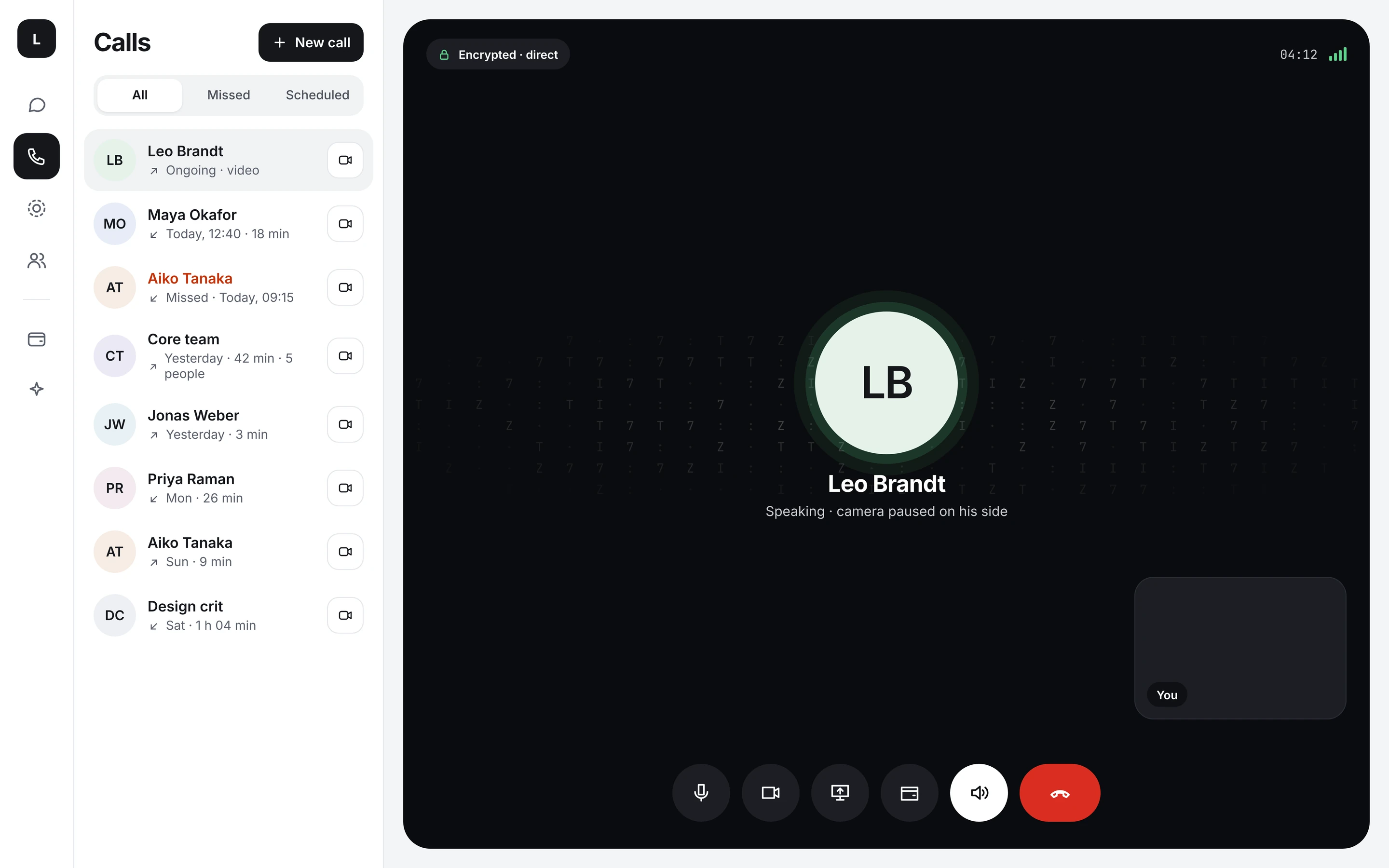
Voice and video calls
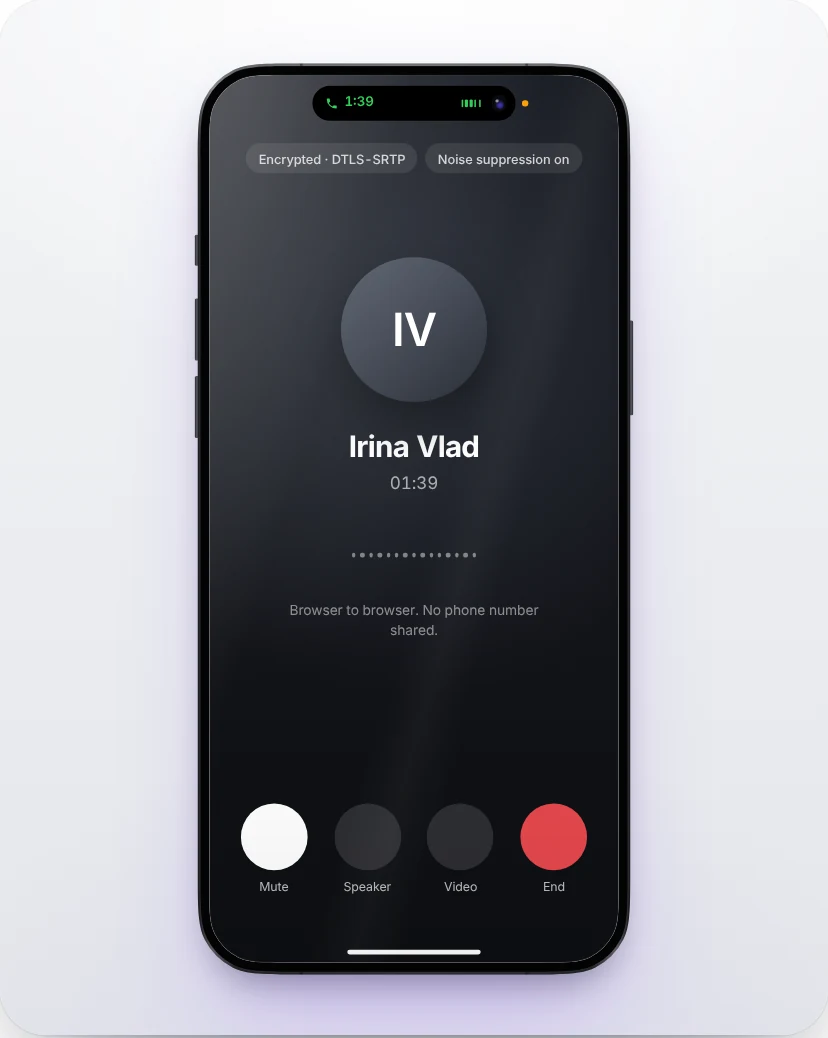
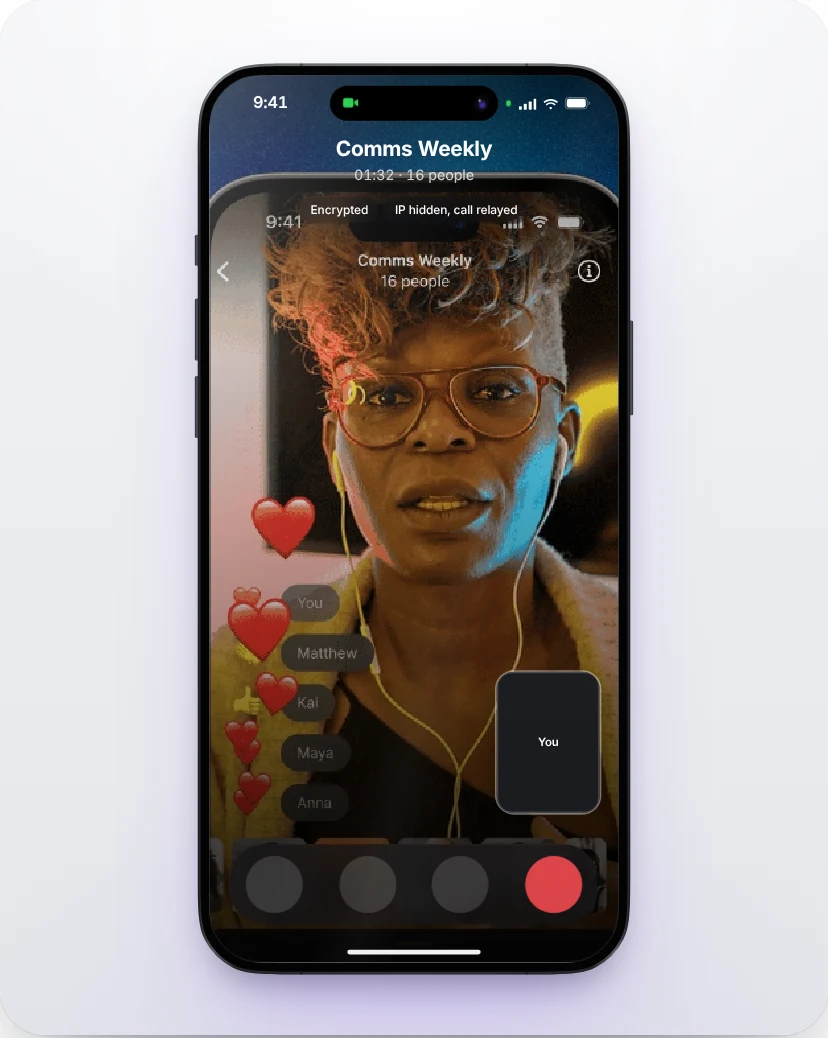
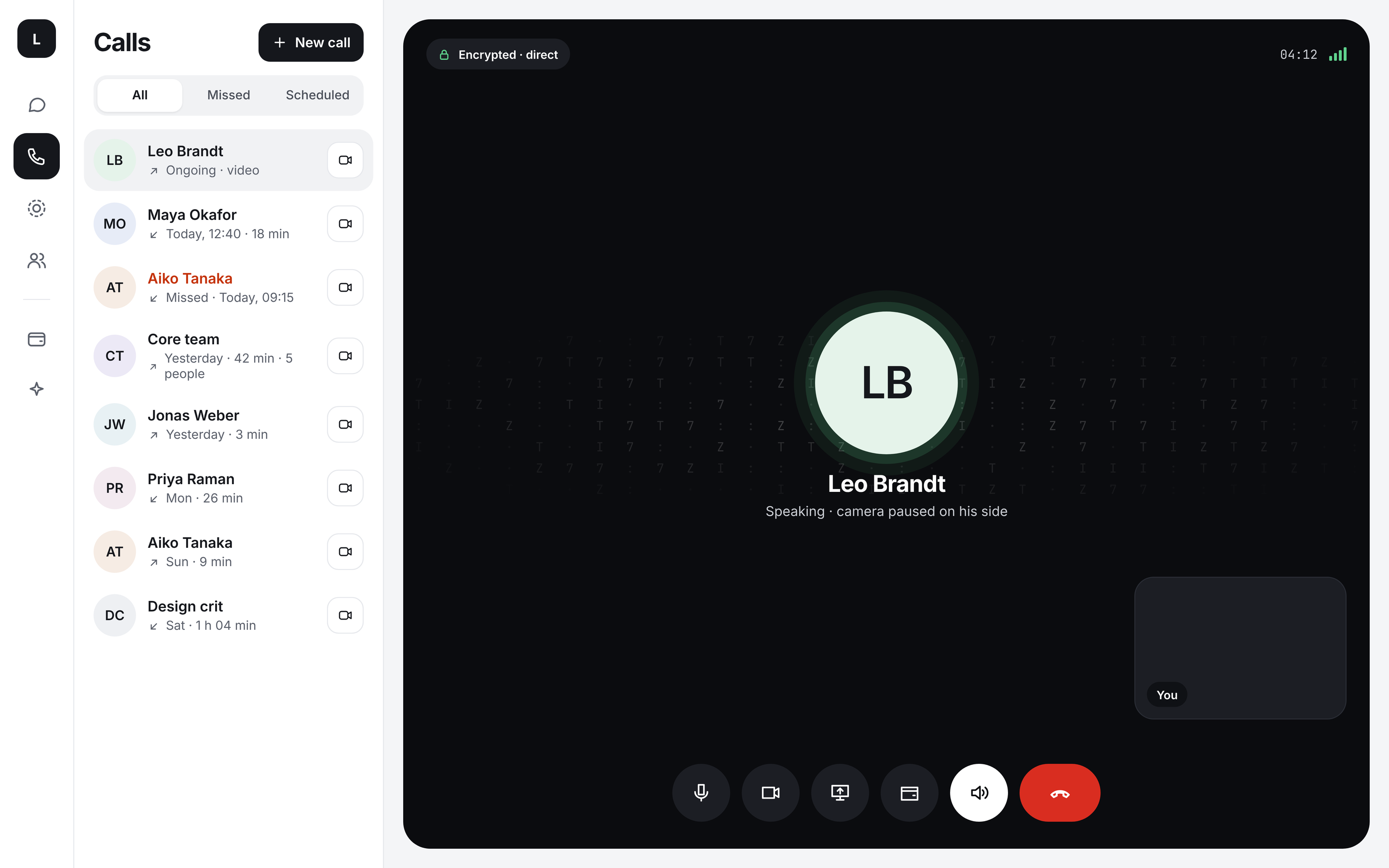
- Call from the phone or camera button at the top of a chat, or from the Calls tab.
- Answer or decline from the screen that appears when someone calls you. Your browser asks for the microphone, and the camera for video, the first time.
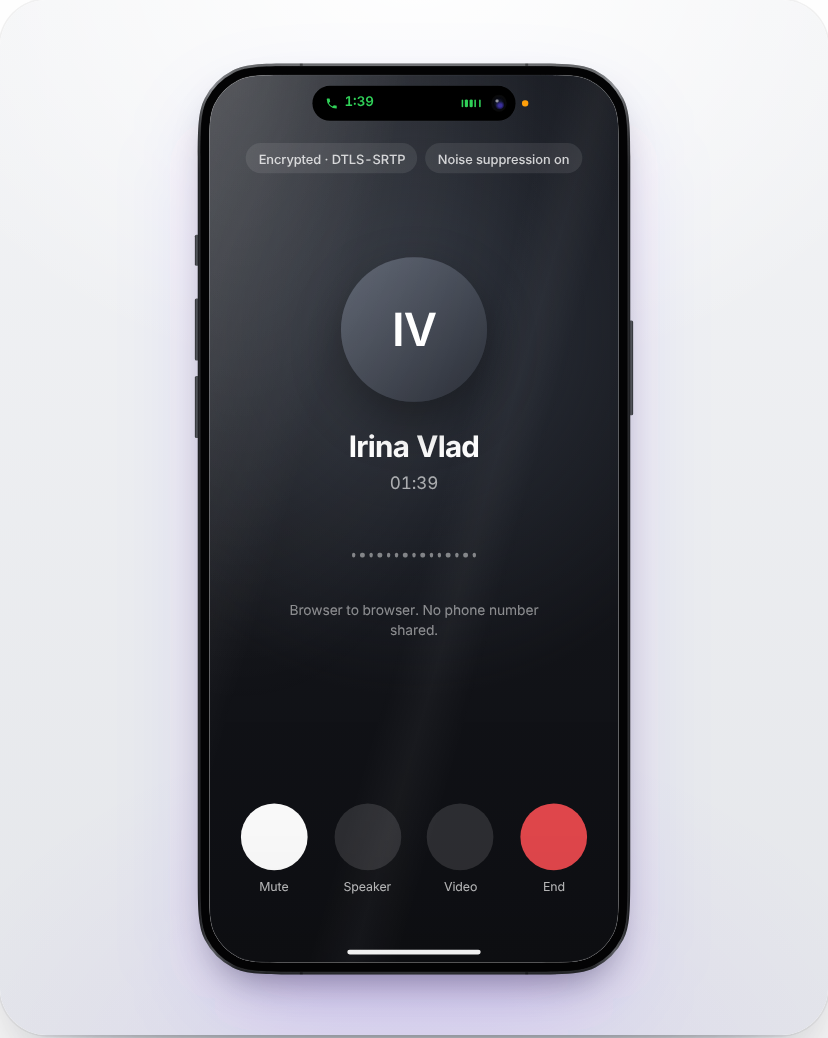
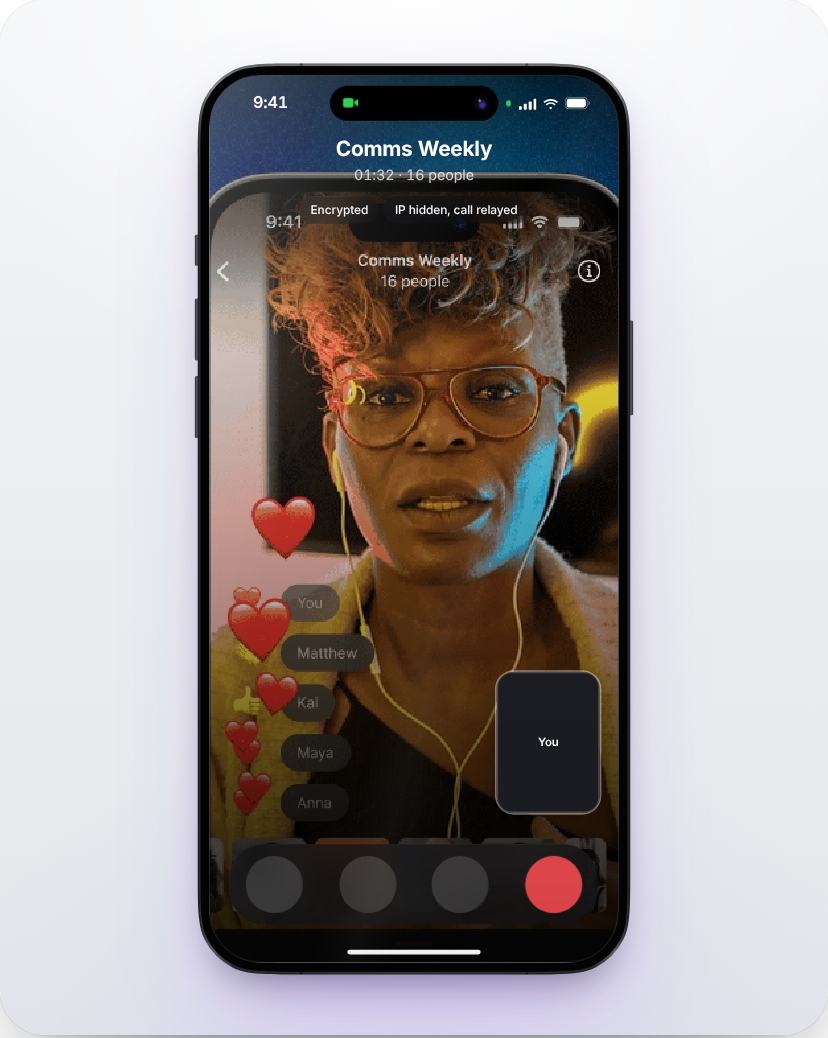
- During a call you can mute, turn the camera off, switch to the speaker, share your screen on a computer, and keep using the app while the call stays in a bar at the top.
- Calls are encrypted end to end between the two browsers. Turn on WebRTC IP masking in Settings, Security if you do not want the other person to see your network address. See Calls for how a call connects.
Scheduling
Schedule a call
Choose the time
In a chat, tap + and then Schedule a call, or type /meet. From the Calls tab, use Schedule a call and pick the person.
Send the invitation
Give it a name, a date, a time, a length and choose voice or video. It is sent as an encrypted message in the chat.
Add it to your calendar
Both of you see a card with the time in your own time zone and a calendar button that downloads the event, with a reminder ten minutes before.
Join
From ten minutes before the start, the card shows Join. If Ledger Chat is open when the call starts, it also reminds you with a Join button. Upcoming calls are listed at the top of the Calls tab.
Schedule a message
Tap + and Schedule a message, or type /schedule. Choose when, then write the message and send it as usual. It waits in the chat with a clock, and a line above the message field lets you cancel it.
Sent from your device
Your messages are encrypted on your device, so no server can send them for you. A scheduled message is sent by the device where you scheduled it. If Ledger Chat is closed at that time, it goes the next time you open it there.
Payments
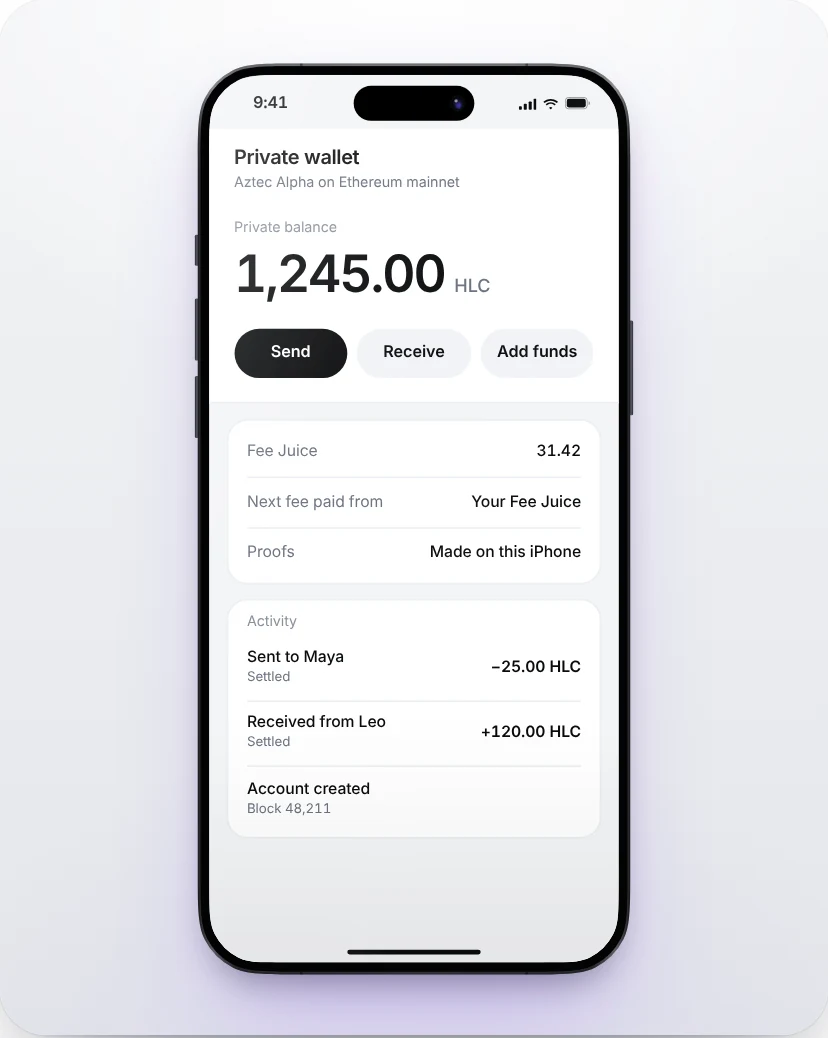
- Payment sends ETH, USDC or USDT from your own wallet. Your wallet shows the transaction and nothing happens until you approve it there.
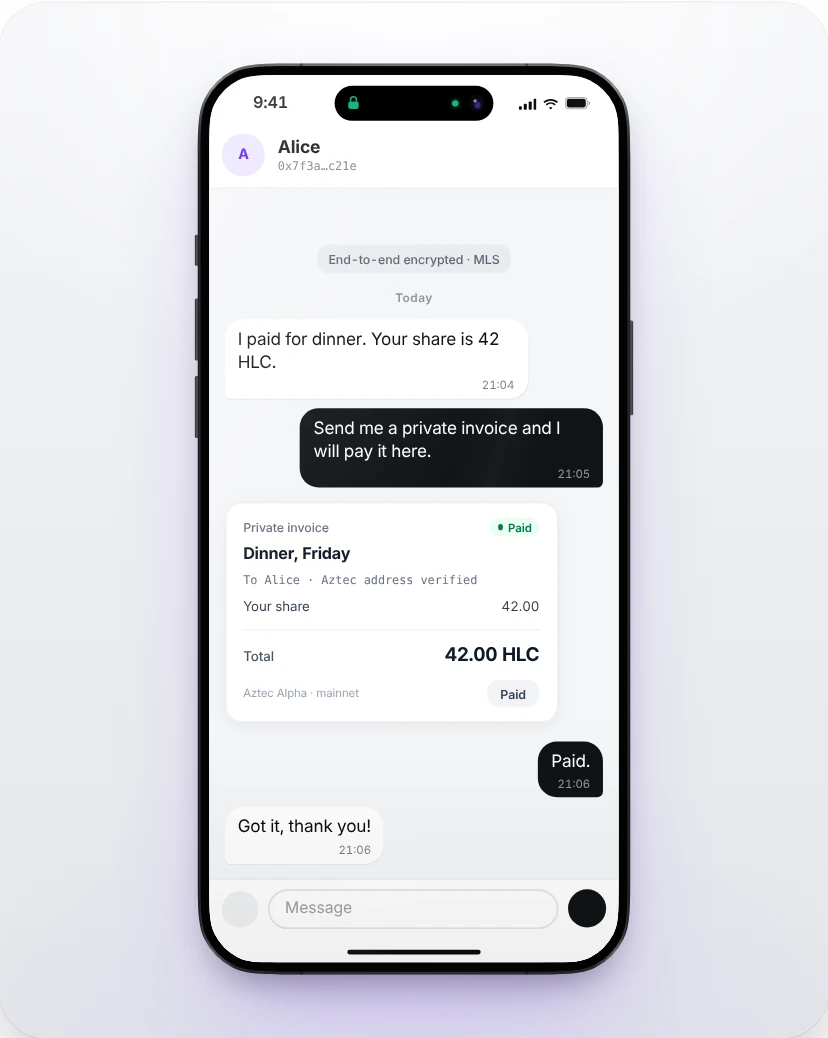
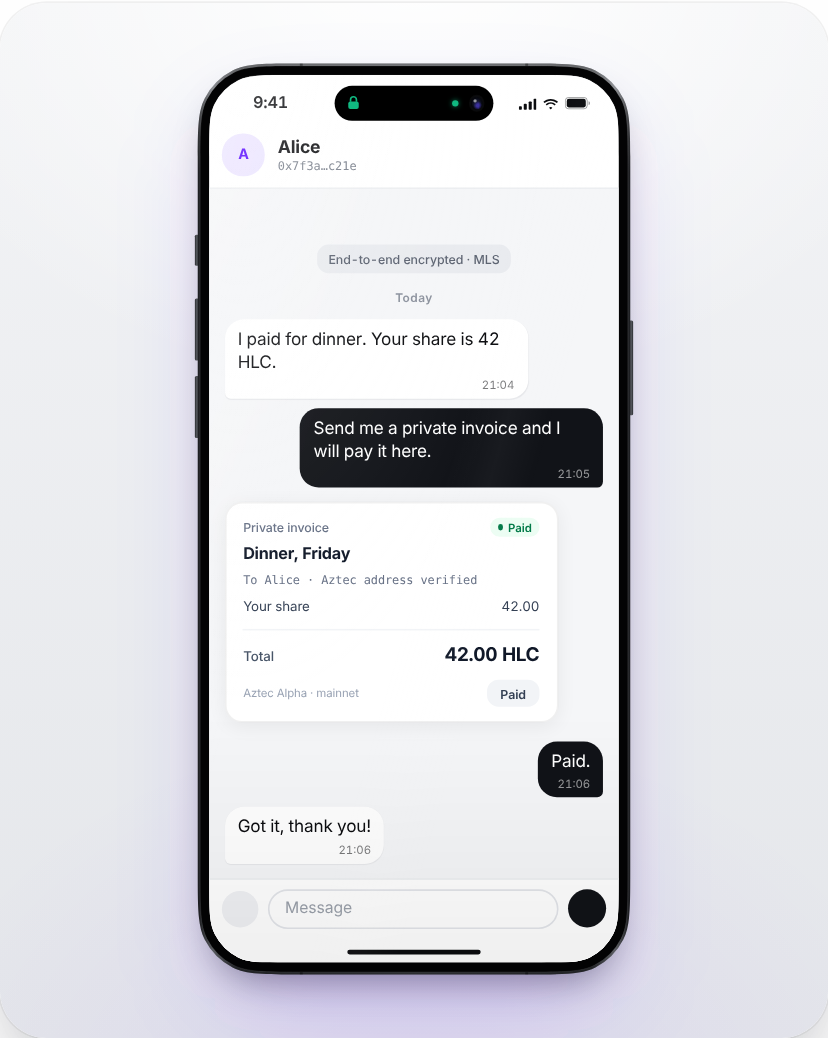
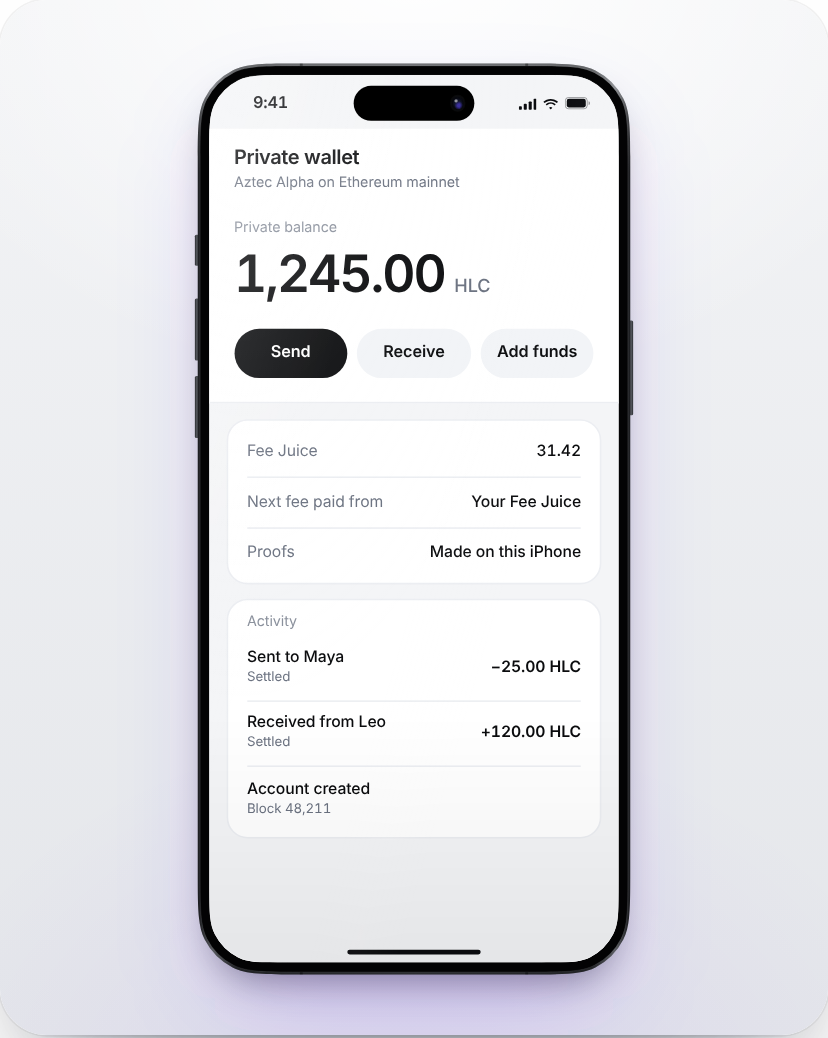
- Private payment sends from your private wallet on Aztec. The amount and the person you paid are not published. Proofs are made on your device.
- Private invoice asks someone for a private payment, and Private agreement sets up an escrow or a payment over time.
- Open the Private wallet from the menu of a chat to see your balance, fees and activity, receive money or add funds.
Private payments run on Aztec Alpha, and our payment contracts have not been independently audited yet. Only use amounts you are comfortable losing. See Private payments.
Communities and updates
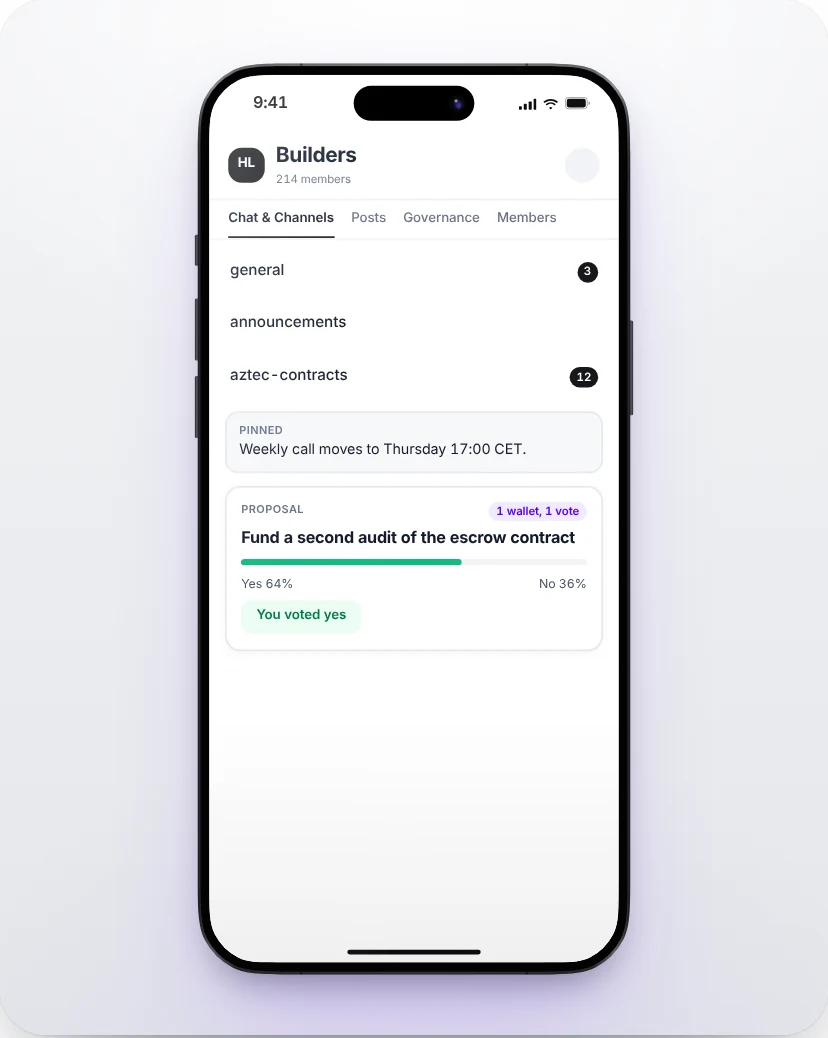
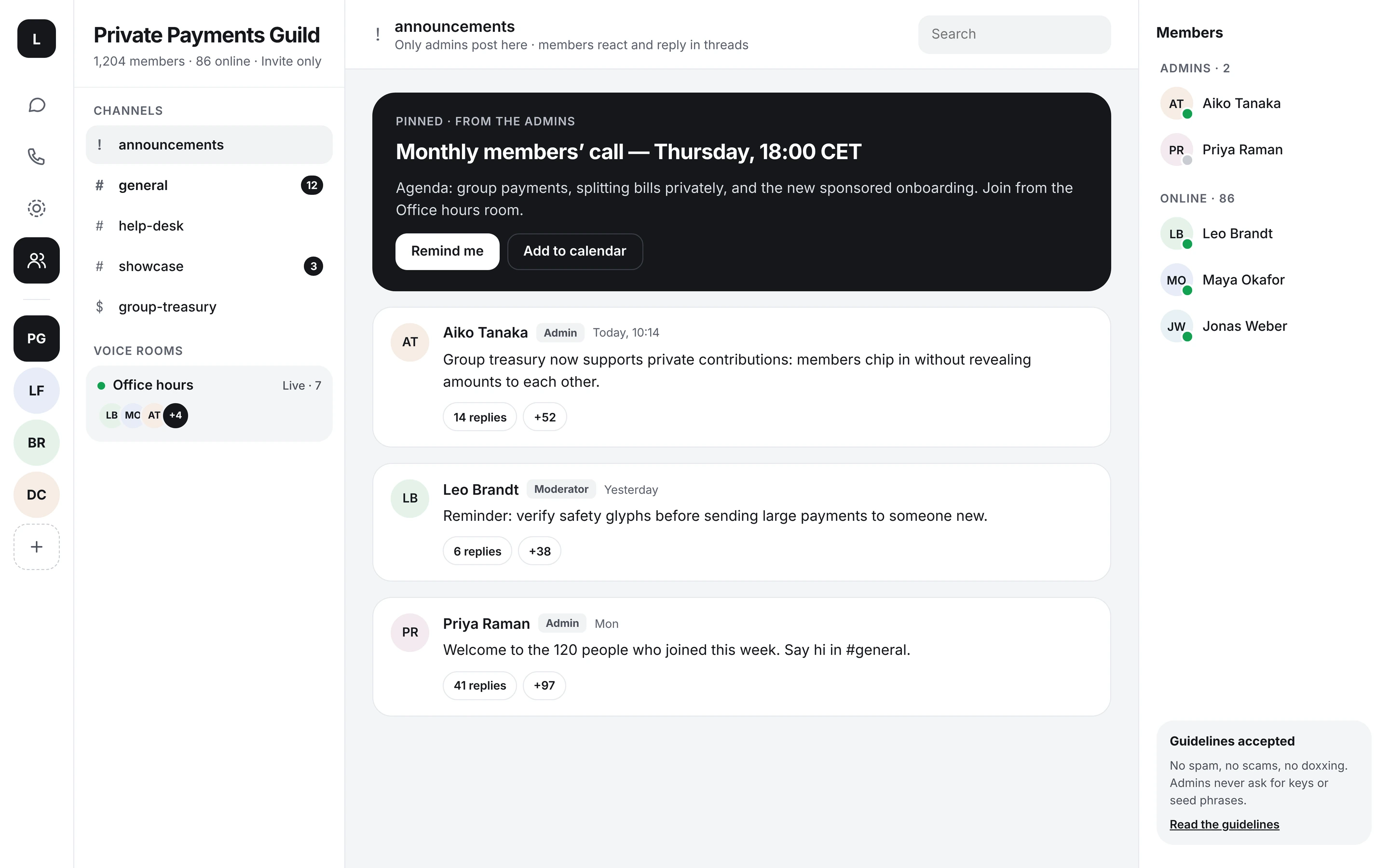
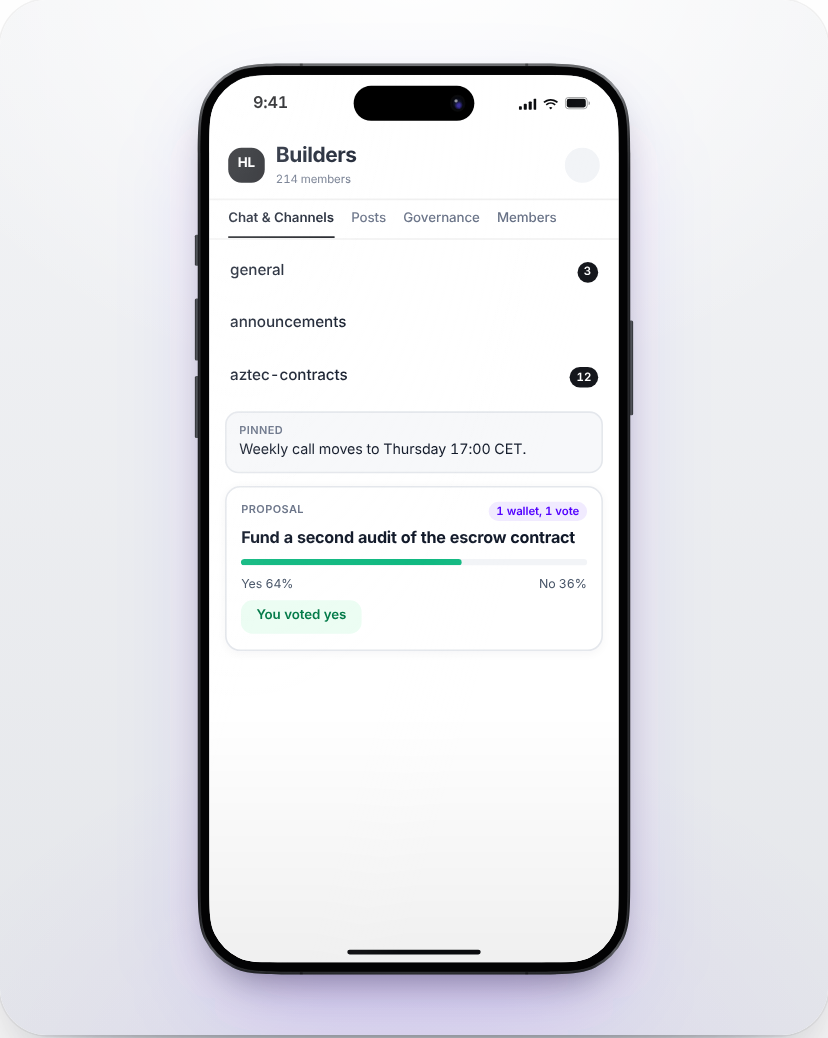
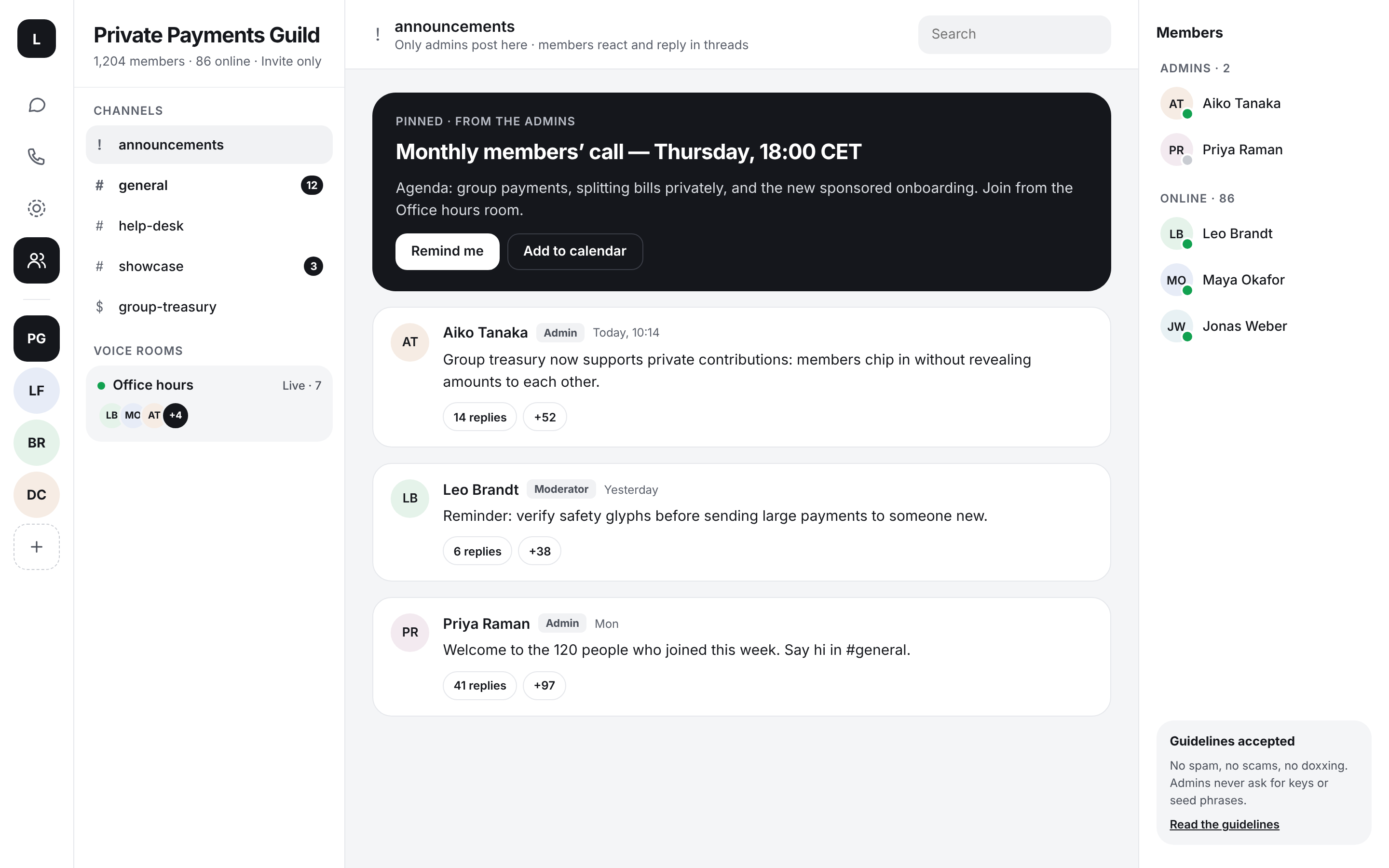
- Communities have channels, roles, announcements, polls, voice rooms and invite links you can switch off at any time. Everyone accepts the community guidelines when they join. Community posts are stored on our server; see Communities.
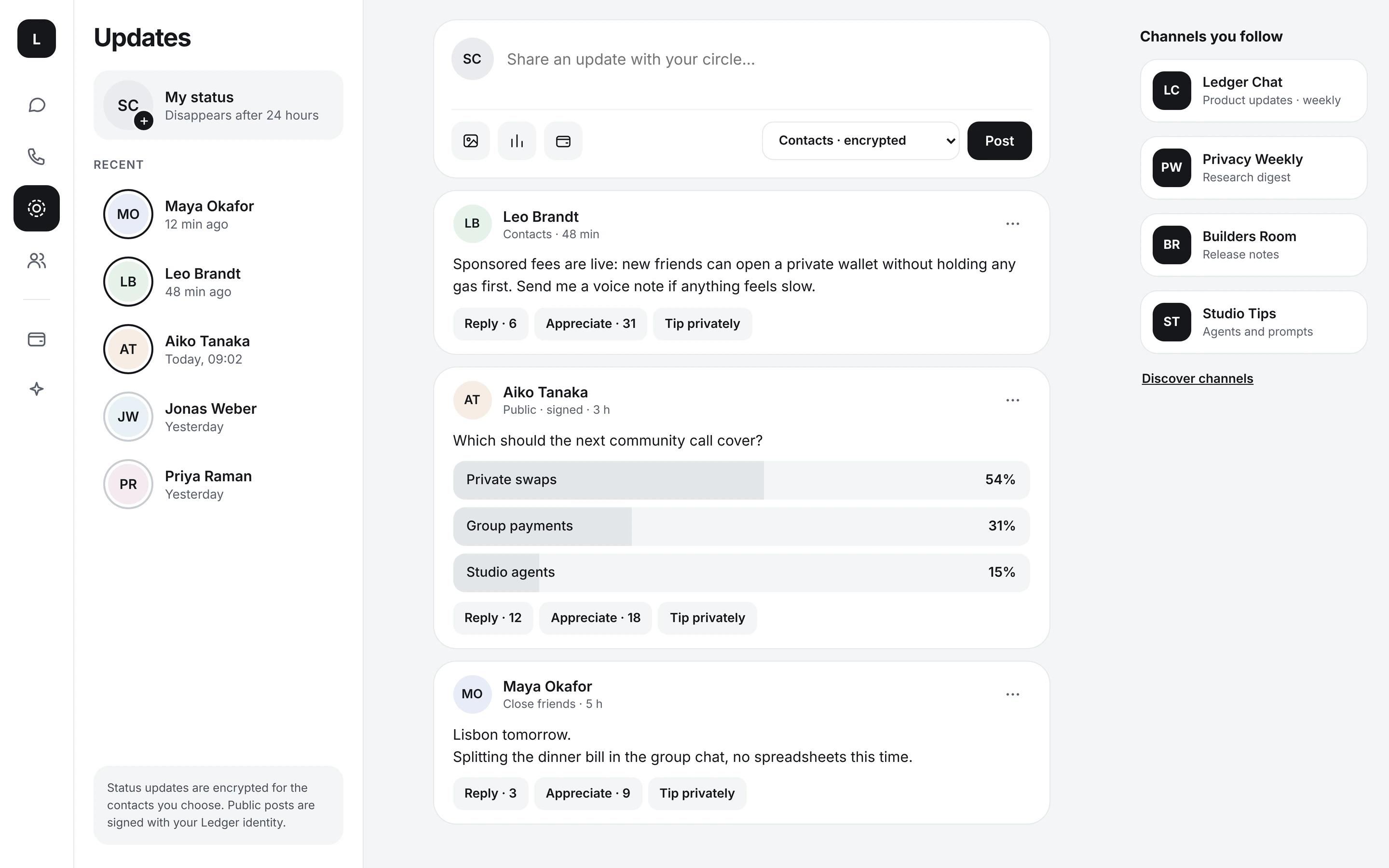
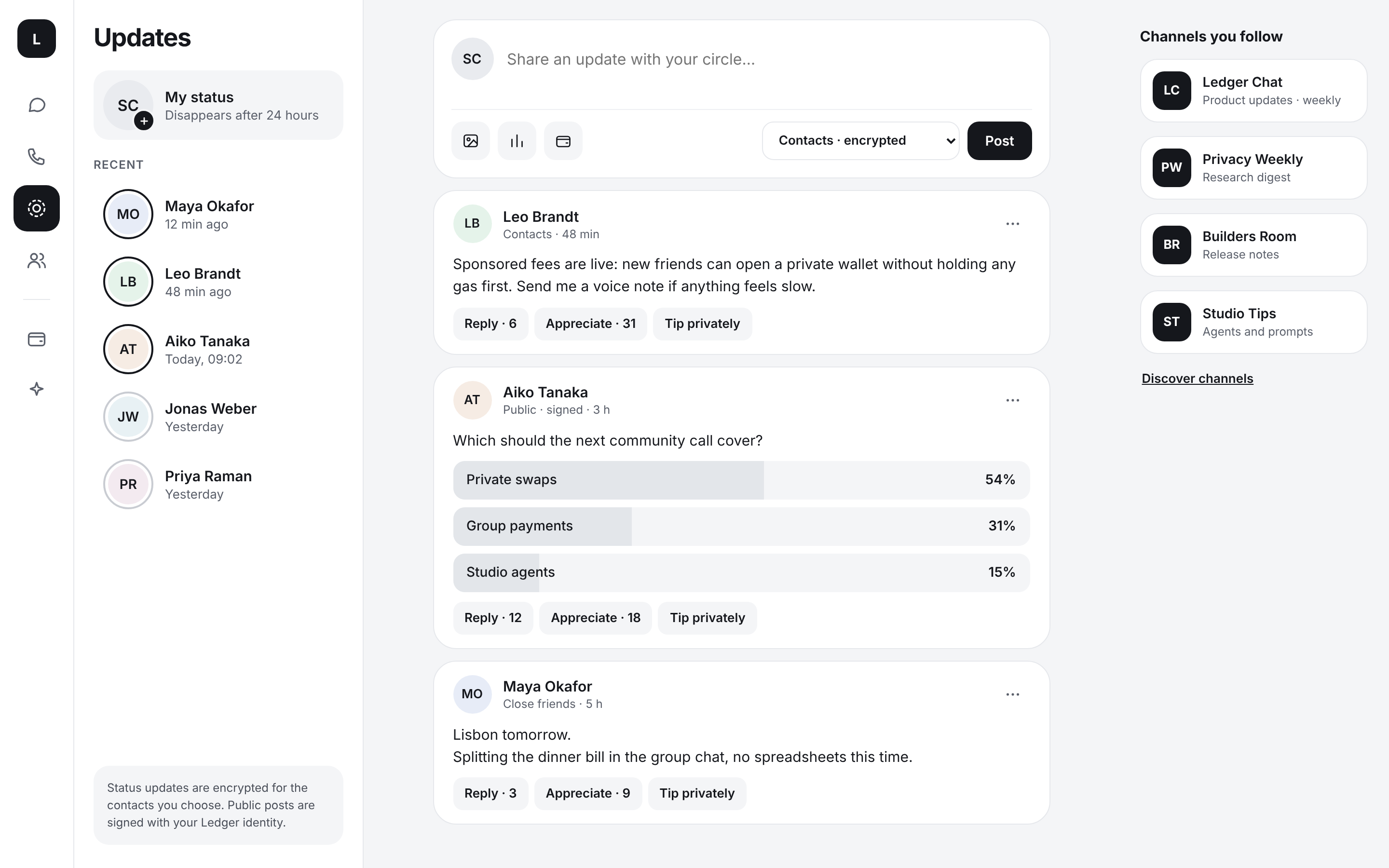
- Status posts are short texts, up to 700 characters, that disappear after 24 hours. They are shown to people who saved you as a contact. They are stored on our server, readable by it, and are not end-to-end encrypted. Photos and videos in Status are not available yet.
Make it yours
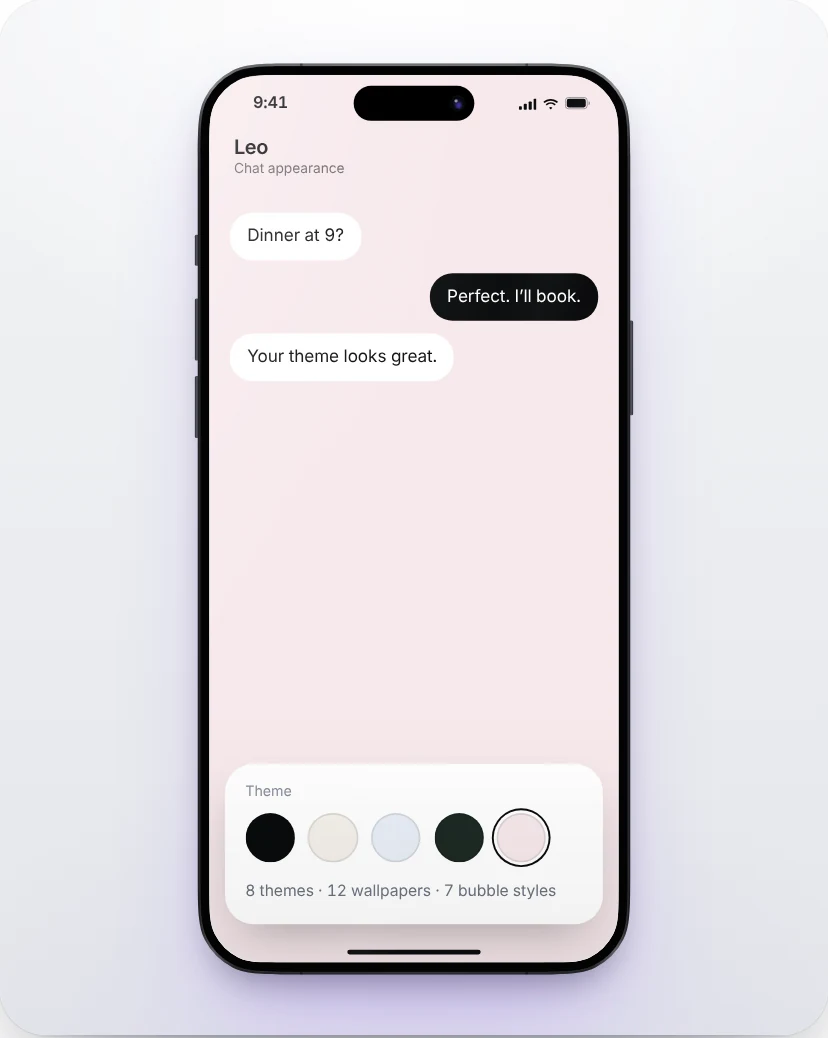
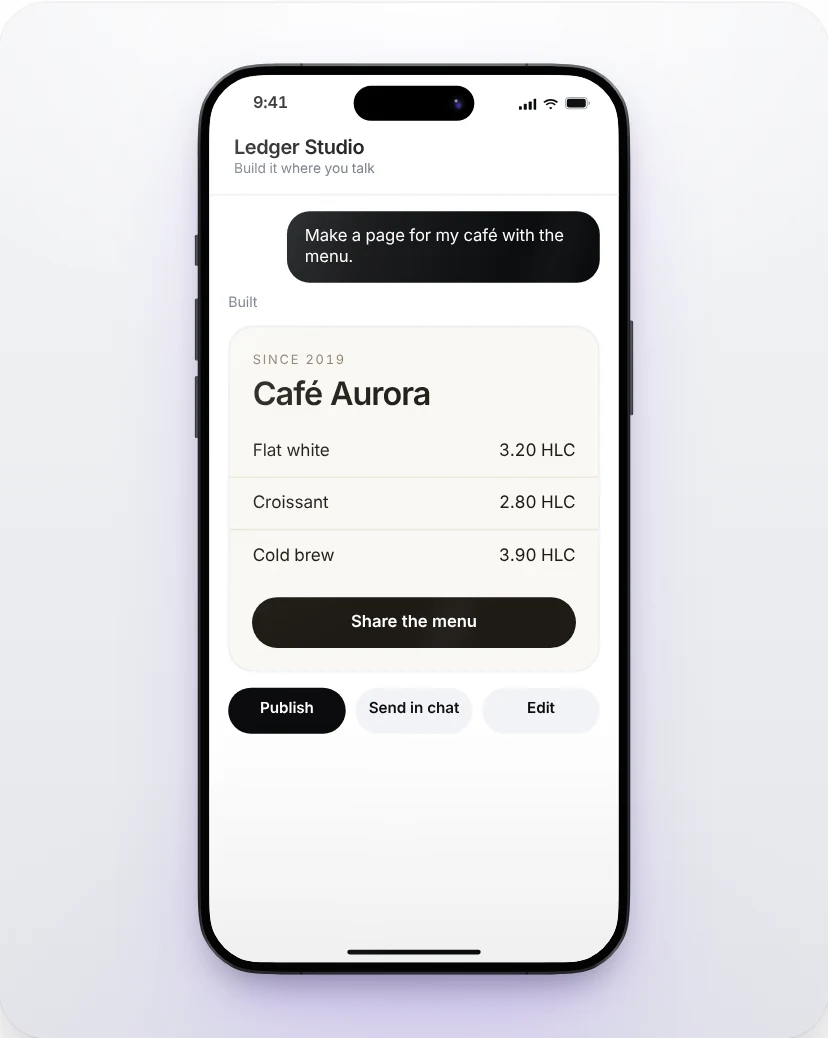
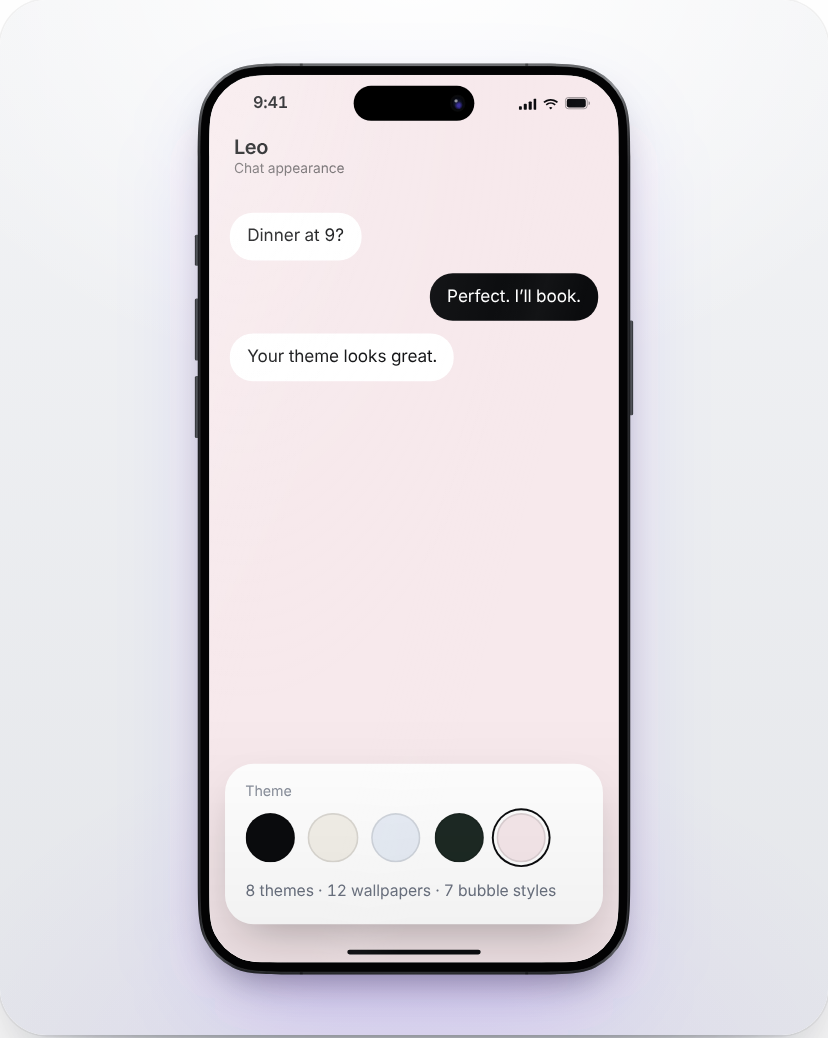
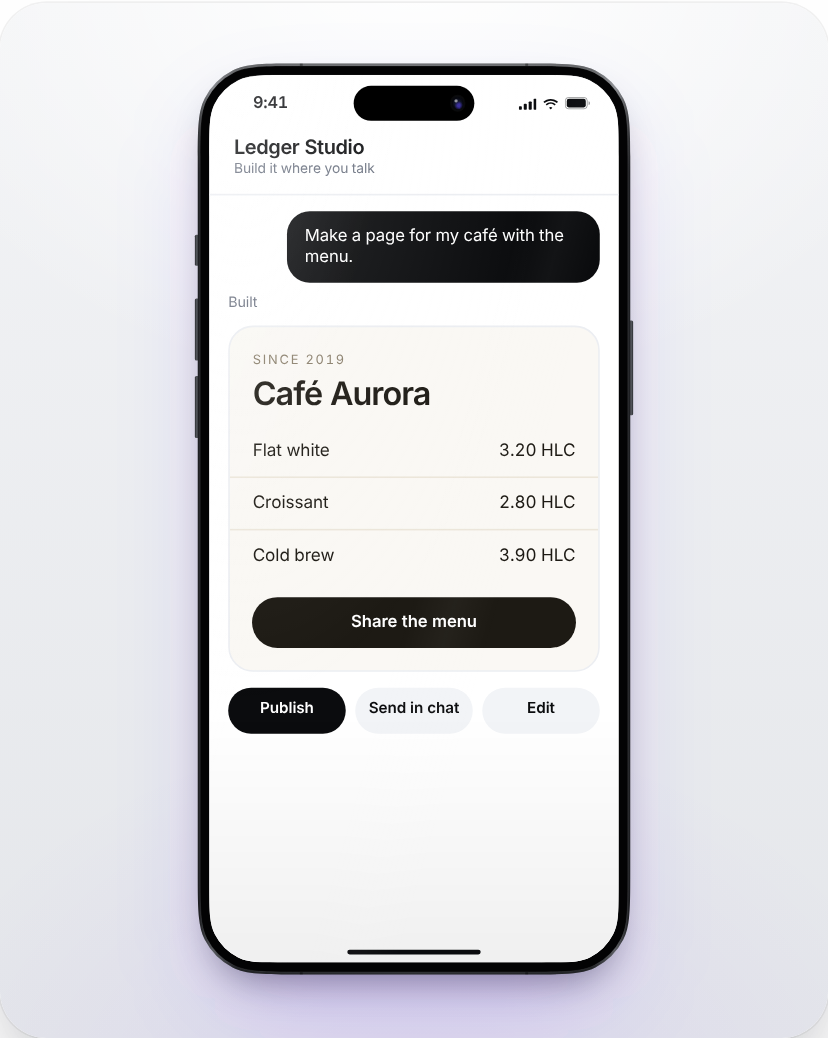
Choose a theme, a wallpaper and a bubble style for all chats in Settings, Chat appearance, or for one chat from its menu. Ledger Studio, from the sparkle button, builds a page or a small app from a description, without leaving Ledger Chat.
Settings
| Section | What you can change |
|---|---|
| Profile and devices | Your name, photo and bio, your wallet address, and the computers linked to your phone. |
| Notifications | Sounds, vibration, alerts, do not disturb, and whether notifications show the message text. |
| Chat appearance | Theme, wallpaper, typography, text size and bubble style. |
| Privacy | Who sees your last seen, read receipts, the typing indicator, blocked people, and screen protection. |
| Security | Sessions, how your chats are protected, and WebRTC IP masking, which hides your IP address in calls. |
| Calls | Camera, microphone, noise suppression and data saver. |
| Storage and data | Media kept on this device, and clearing it. |
| Payments | Payments in chats on or off, and the token you send by default. |
On a computer
On a large screen Ledger Chat shows your chats, the conversation and its details side by side. These are the screens of the redesign we are building.
Your privacy, in plain words
- Direct messages, voice notes, photos and files are encrypted on your device. Only the people in the conversation can read them.
- Calls are encrypted between the two browsers.
- Your keys stay on your devices. We cannot read your direct messages and cannot recover them for you.
- Some things are on our server so the app can work: your public profile, communities and their posts, and a backup delivery path that is marked in the chat when it is used. The security model lists all of it.
If something does not work
- Messages do not appear right after you sign in: Ledger Chat is still syncing. Give it a few seconds; the conversation shows a loader meanwhile.
- A call does not connect: check that the browser may use the microphone and camera, and that both of you are online. Some company networks block direct calls.
- Something else: tell us at Report a vulnerability for security issues, or through Contact for anything else.